How to Connect Your Android to Mac: LocalSend, Iriun Webcam, scrcpy & KDE Connect Setup
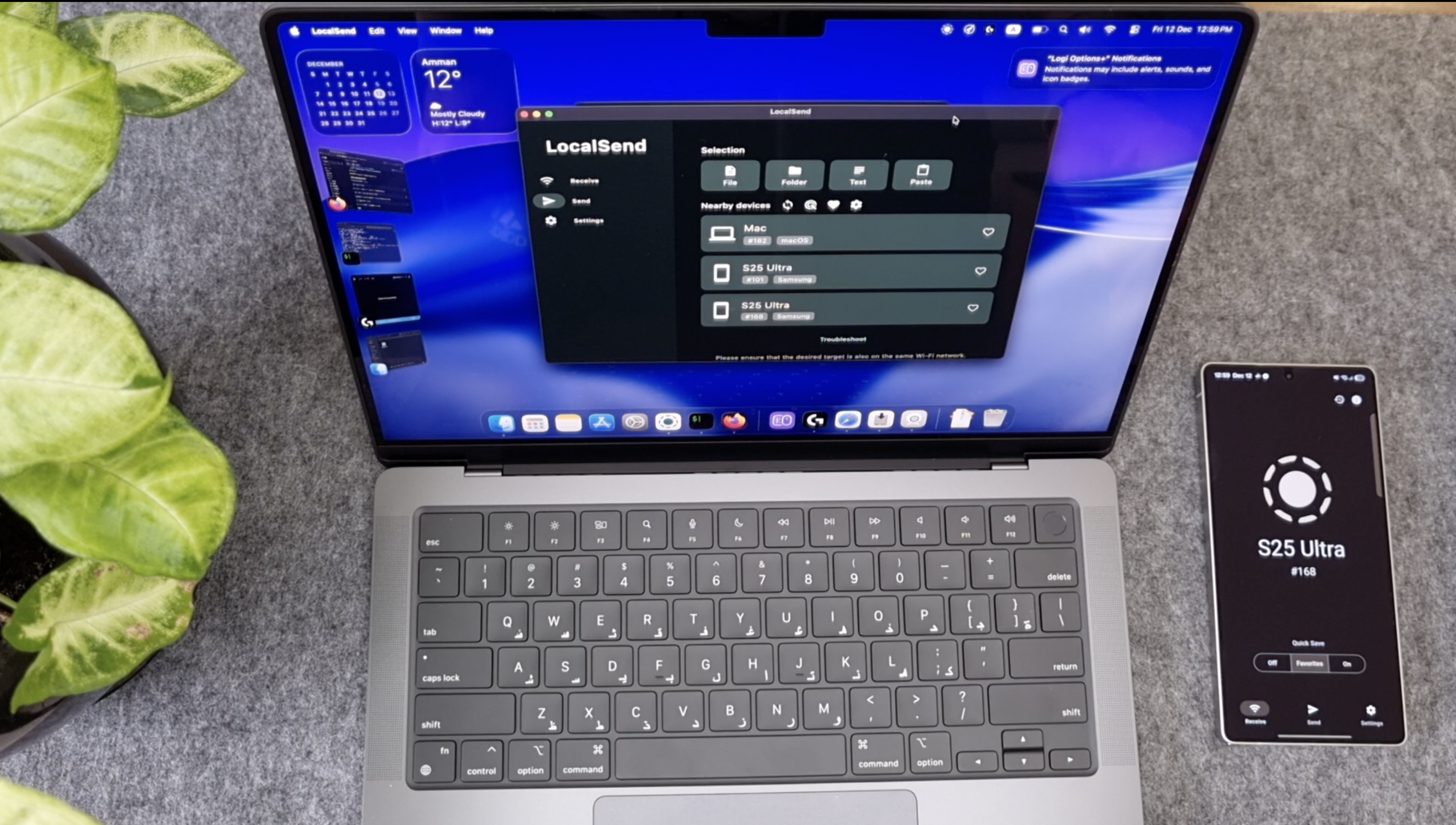
LocalSend
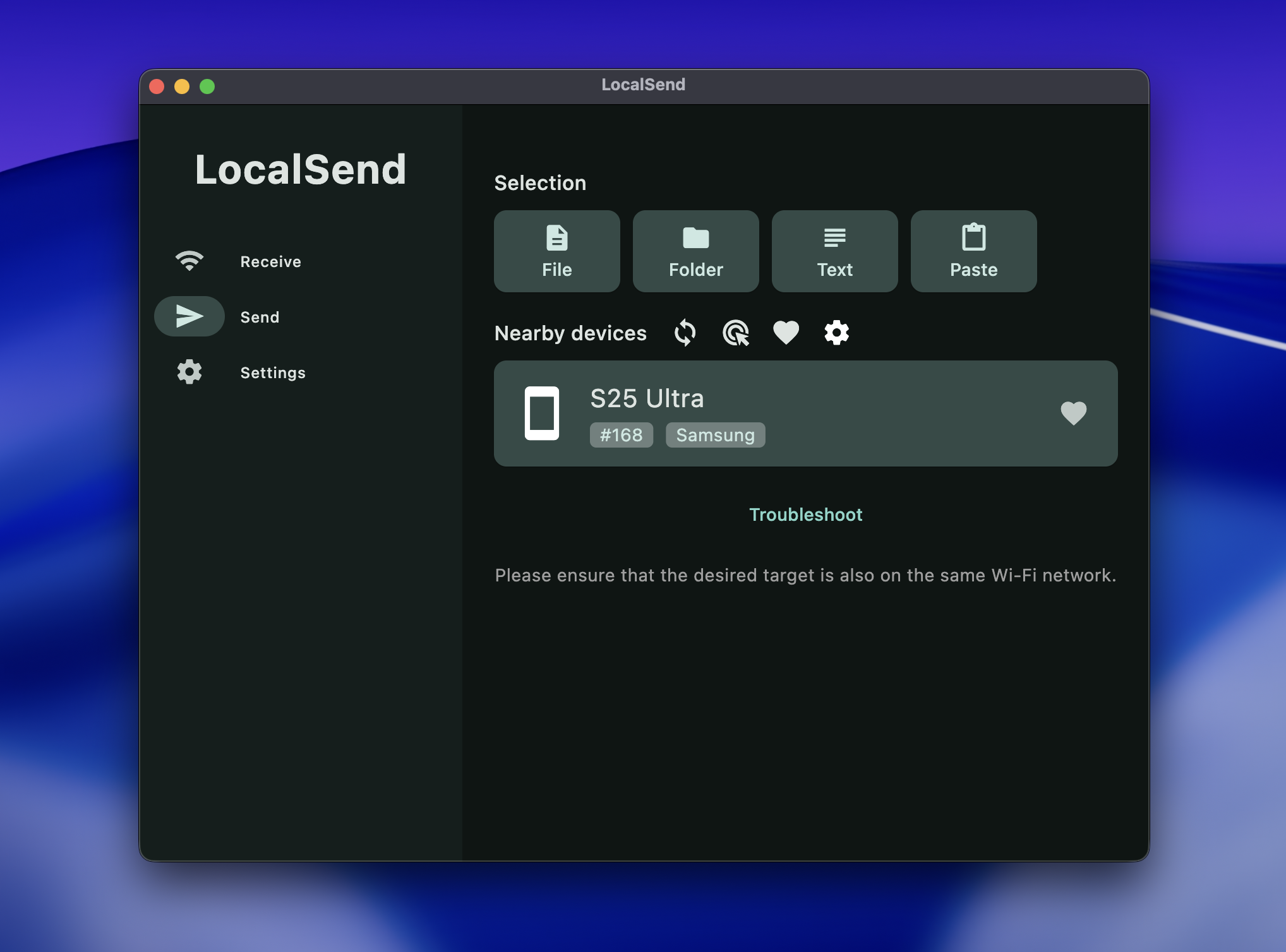
LocalSend is a free and open-source app that lets you share files securely over a local network.
To get started, download LocalSend on your device:
- On macOS: Download LocalSend from the Mac App Store.
- On Android: Download LocalSend from the Google Play Store.
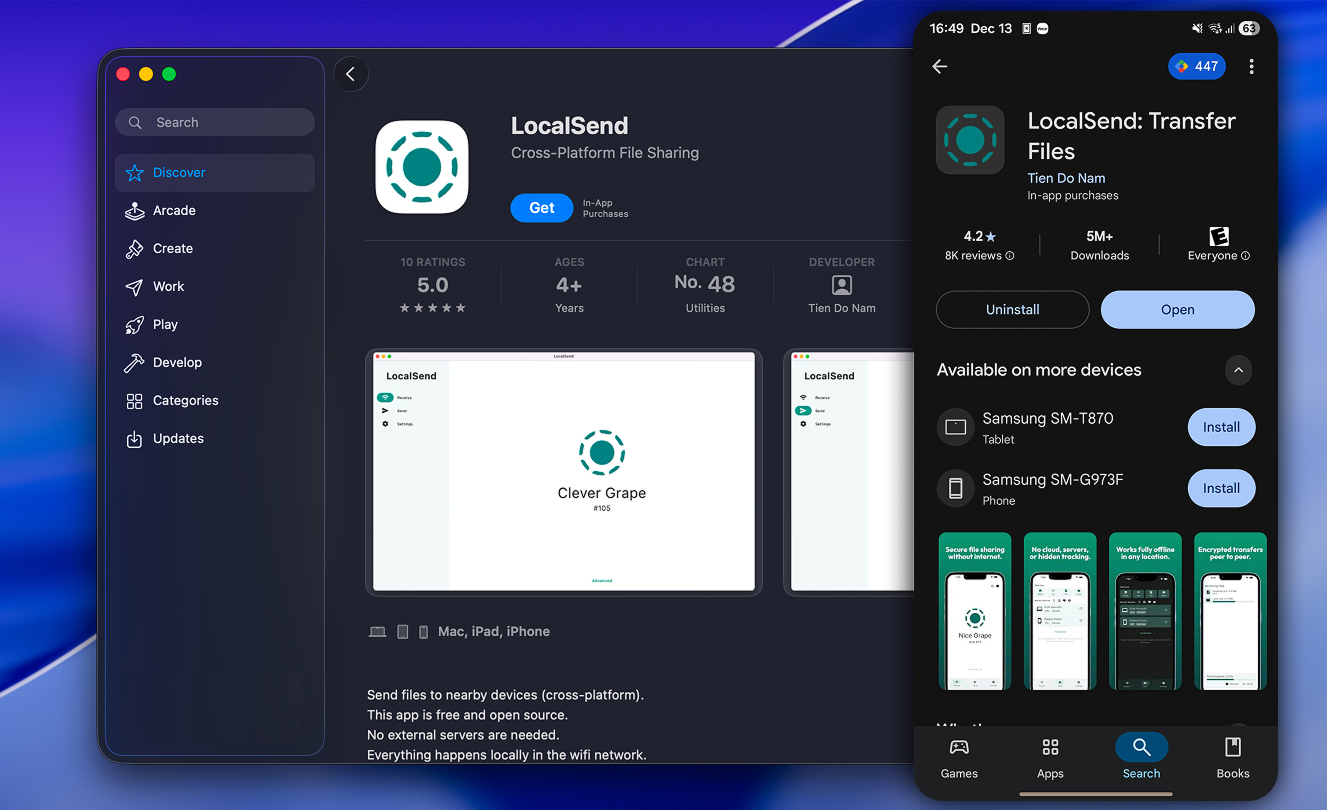
Once installed, open the app on both devices and make sure they are connected to the same local network to start sharing files.
Iriun Webcam
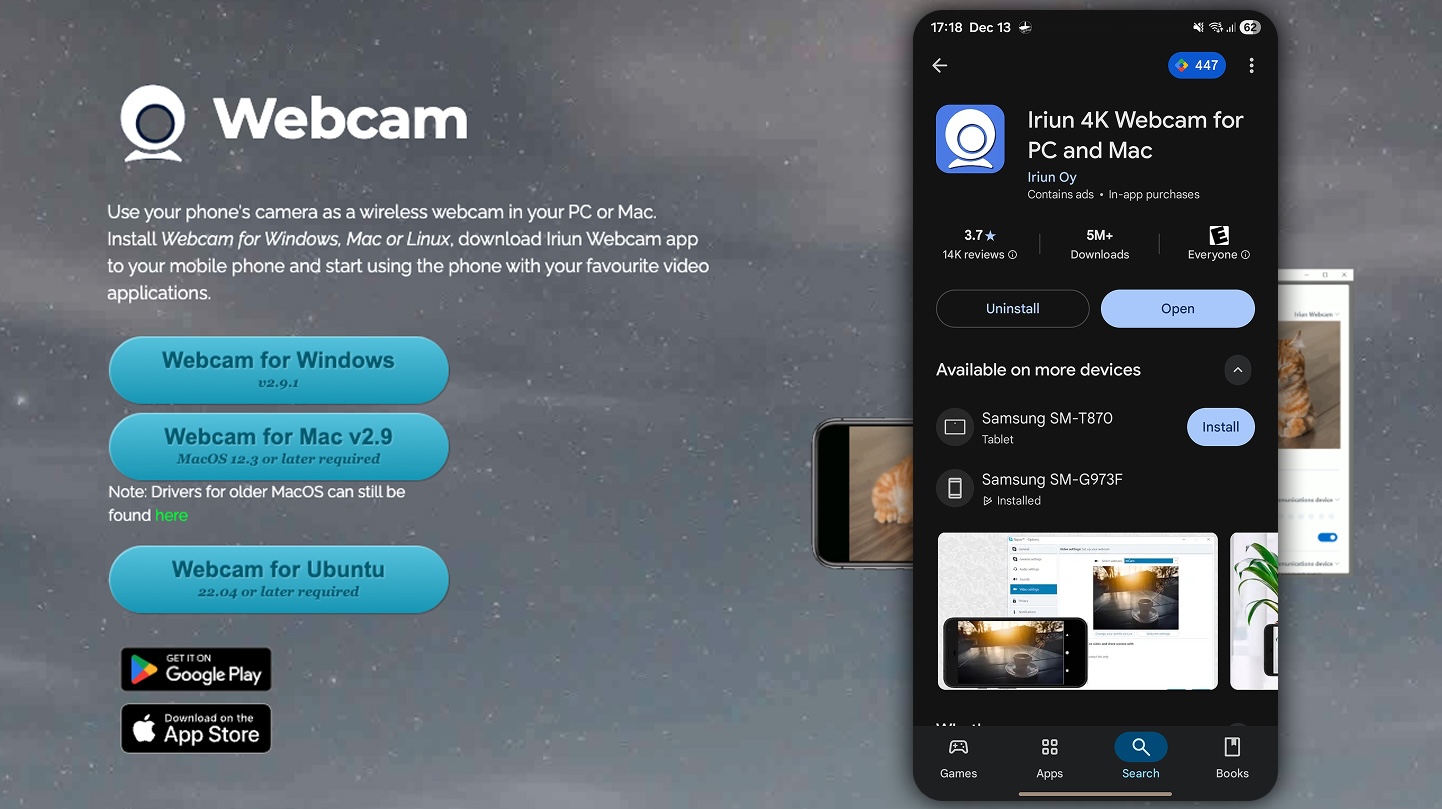
Iriun Webcam lets you use your phone’s camera as a wireless webcam on your Mac.
To install it on macOS, visit https://iriun.com and click Download for Mac. Once the download is complete, open the iriunWebcam.pkg file and follow the on-screen instructions to finish the installation.
On Android, download Iriun Webcam from the Google Play Store.
ScrCpy
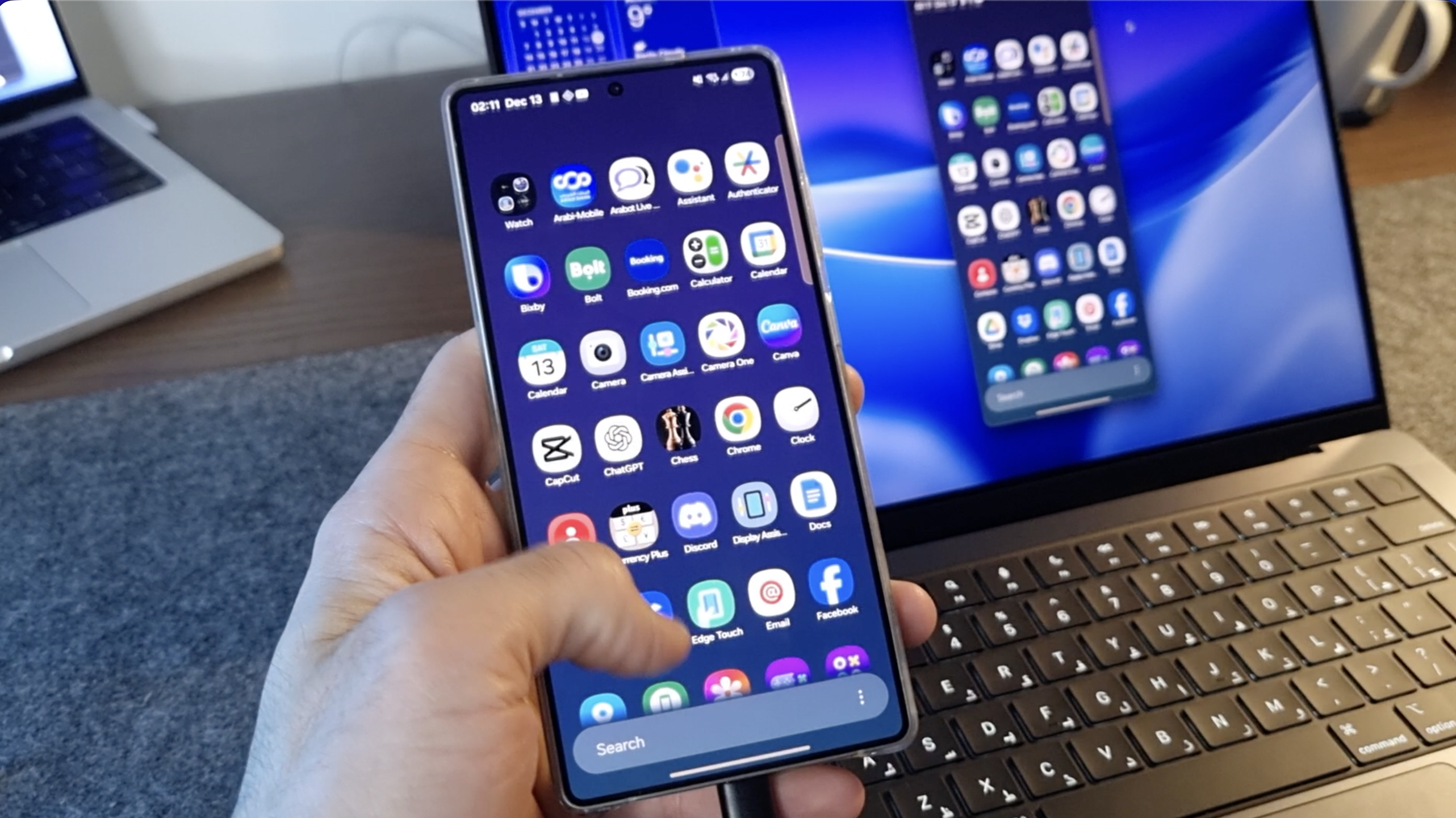
scrcpy is a free and open-source tool that lets you display and control your Android device from your Mac using a USB connection, to install scrcpy, follow these instructions
MacOs Setup
- Step 1: Install Homebrew (if not already installed)
Open Terminal. Paste the following command and press Enter:
/bin/bash -c "$(curl -fsSL https://raw.githubusercontent.com/Homebrew/install/HEAD/install.sh)"
Add Homebrew to Your PATH
After installation, Homebrew may not be immediately available in your terminal. To add it to your PATH:
In Terminal, run the command shown at the end of the Homebrew installation. It usually looks like one of the following:
echo >> /Users/expify/.zprofile
echo 'eval "$(/opt/homebrew/bin/brew shellenv)"' >> ~/.zprofile
eval "$(/opt/homebrew/bin/brew shellenv)"
Verify Homebrew is correctly installed by running:
brew --version
Step 2: Install scrcpy
- In Terminal, run:
brew install scrcpy
- You need
adb, accessible from yourPATH. If you don't have it yet:
brew install --cask android-platform-tools
Android Device Setup
Step 4: Enable USB Debugging on Android
- Open Settings on your Android device.
- Scroll down and tap About phone.
- Tap Build number 7 times until you see a message that Developer options are enabled.
- Go back to Settings and open Developer options.
- Enable USB debugging.
Step 4: Connect Your Android Device via USB
- Connect your Android phone to your Mac using a USB cable.
- When prompted on your phone, tap Allow USB debugging.
- Make sure the device remains unlocked.
Step 5: Start scrcpy
- In MacOS Terminal, run:
scrcpy
- Your Android screen should now appear on your Mac, and you can control it using your keyboard and mouse.
Note
If you are using an Arabic keyboard and typing does not work correctly in scrcpy, start scrcpy with the following command:
scrcpy -K
KDE Connect
KDE Connect is a free, open-source tool that lets you integrate your Android device with your Mac (or Linux) for features like file sharing, notifications, clipboard sync, and remote control.
macOS
Step 1: Install KDE Connect on Mac
Go to KDE Connect MacOS download page
Alternatively, KDE Connect is available via Homebrew. Open Terminal and run:
brew install --cask kdeconnect
- Once downloaded, open the app and move it to your Applications folder if needed.
Step 2: Launch KDE Connect on macOS
- Open KDE Connect from your Applications folder.
- Grant any permissions requested by macOS (network access, notifications, etc.).
- Keep KDE Connect running while you pair your Android device.
Android
Step 1: Install KDE Connect on Android
- Open the Google Play Store on your Android device.
- Search for KDE Connect.
- Tap Install and wait for the installation to complete.
Step 2: Connect Your Devices
- Make sure both devices are on the same Wi-Fi network.
- Open KDE Connect on both devices.
- On either device, your other device should appear in the list of available devices.
- Tap Pair on your Android or Mac device.
- Accept the pairing request on the other device.